| |
|
 |
Instructions on placing an order |
Placing orders at SakuraMedia.com is easy. The newly designed shopping cart
came with this new version was built in wizard style which allows our customers to follow along the checkout proccess without worries.
|
1. Adding items into your shopping cart
If you decide to add an item to your shopping cart,
simply click the " Add to cart" button in the product's detail page. If an item is temporary out of stock, an
" Add to WishList" button will be shown. If you would like to be notified when the item becomes available, you
may click this button.
For more information on product status, please click here.
 |
You may view your shopping cart at anytime to keep track with what you have shopped. The "View Cart" button is located on the main menu
right beside the five big categories button. |
|
2. View your cart, and checkout!
The shopping cart clearly shows a list of items you have added. You may click the title anytime
you would like to go back to see the detail of the product. If you would like to buy more than one
copy of the same item, simply change the value in the " QTY" (Quantity)
field. If you decide to take an item out from your shopping cart, check the " DEL" (Delete)
box located at the beginning of the row. Click the " Update" button underneath the
list of items to update your shopping cart.
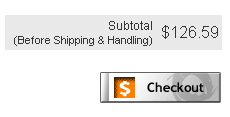 |
The Subtotal field, located underneath the list of items, shows the price of all the
items in total. Note that this total DOES NOT include the shipping and handling fee,
and taxes (if applicable).
When you think you have got enough items, click the "Checkout" button to proceed
to the checkout proccess. |
|
3. Follow along the checkout wizard
Our newly developed checkout wizard will guide you through the entire proccess. It will be asking you to
fill in all the required information and to make a few decisions so that we know how to proccess your order.
At the very last step, the wizard will display your list of items again and the information you have provided.
Please review it at this point. If you find any incorrect information, you may go back and correct them.
After making sure everything is correct, you may click the "Submit" button to send
us the order.
|
4. Automatic Response E-mail
A few seconds after you checkout, our system will send you an automatic response e-mail. This is
to confirm that we had successfully received your order and will proccess it within 48 hours. If
you do not receive such response from our system, a very big chance is that you had entered a wrong
e-mail address, and you would have to place your order again.
|
5. Official Invoice
After our staff review and process your order, we will send you the official invoice through
e-mail. The invoice shows your items and the final total amount you have to pay along with the
shipping and billing information. Each invoice will be issued an invoice number. If you would like
to contact our staff for anything regarding your order, please quote this invoice number. The invoice
will also tell you further instructions to complete your order.
|
6. Completing your order
Depending on your payment method, further steps may be required to complete your order. If
you are a returning customer who has chosen ePO to checkout, you are already done by the time
you receive the invoice. For first-time credit card users, you may either be asked to wait for our phone call
to give us your credit card number, or complete a form with your credit card information and fax it
back to us. Customers outside Canada and United States will also be asked to photocopy the front and back
of the credit card and a piece of legal photo I.D. and fax it back to us along with the credit
card information form. If you prefer paying in money order or cash, please have them ready and mail to us.
|
|
|
|
|
|


